Blend Photos - Photo Blender
- 4.6
- Rating
- 10.00M
- Installs
- Free
- Price

 Analysis by App-foxy
I like photo apps that let me reach a finished image quickly, but blending pictures is one area where speed can easily turn into a messy result. Blend Photos - Photo Blender takes a focused approach: it is a free photography app built around combining images into a single composition. After spending time with it, I found its appeal is less about replacing a full photo editor and more about giving you a practical way to experiment with layered images without learning a complicated desktop-style workflow.
The app is made by Maxlabs Photo Editor and is available for Everyone, which makes it approachable for casual users as well as older children using a compatible device. It has been available since November 25, 2019, and its current version is 5.9.0. That history matters because this is not a brand-new experiment with an untested idea; it has had time to establish a sizeable audience. Its average rating sits at 4.6 from around 84 thousand ratings, while the app has passed 10 million installs.
What you can realistically do with the free version
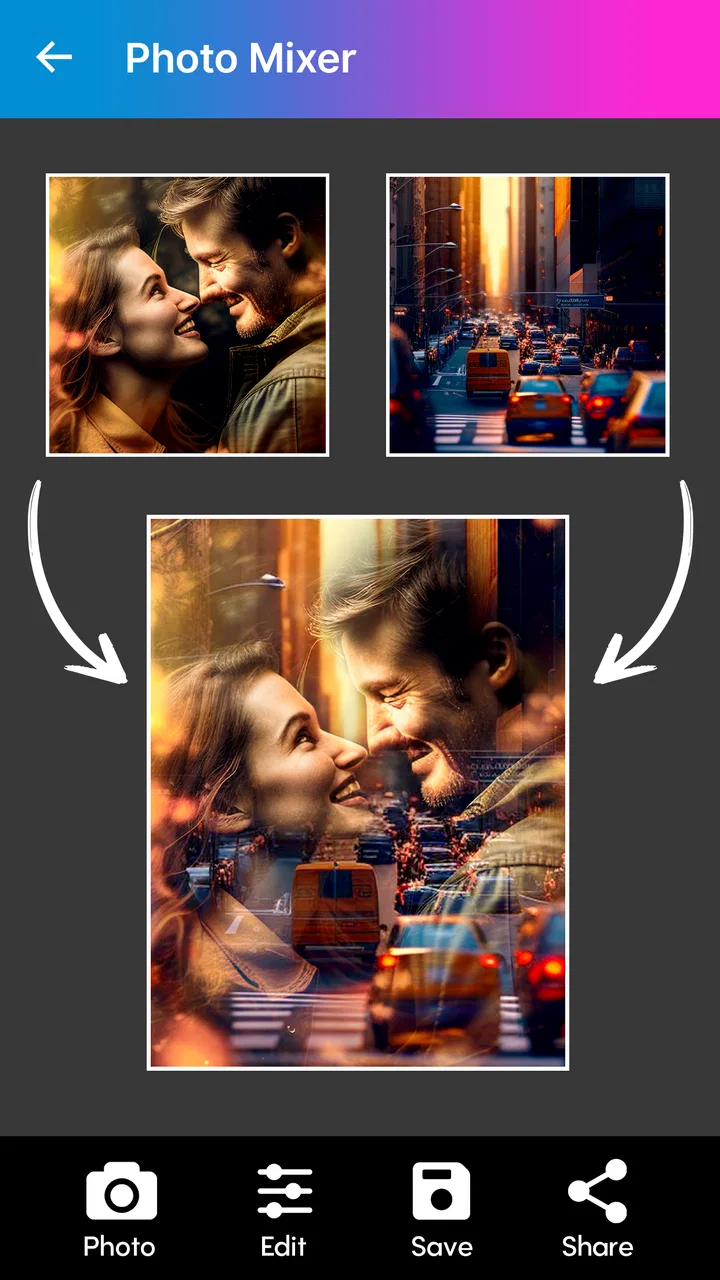
The main attraction is straightforward. You choose images, combine them, and adjust the result until the pictures feel like one visual rather than two unrelated files placed beside each other. That makes it useful for double-exposure-style portraits, travel collages with a more artistic finish, mood boards, profile images, and social posts that need something more distinctive than a standard crop.
You May Also Like

 Google Keep - Notes and lists
Google Keep’s Quiet Growth Shows the Appeal of Simpler Notes
As mobile work gets busier, Google Keep keeps winning a simple contest: capture a thought quickly, find it later, and get on with the day.

 Blood Strike: 2.5 Anniversary
Blood Strike’s Loadouts Turn Every Drop Into a Tactical Gamble
A close look at Blood Strike’s custom loadouts: how fast access to signature weapons reshapes its battle royale rhythm, rewards preparation, and narrows the gap between fights.

 Pandora - Music & Podcasts
Pandora’s Music Is Easy to Start, but Harder to Recover
Pandora’s strength is its low-effort path from a seed to a station. Its weak spot is how much confidence it asks you to place in connection, setup, and quiet recovery.

 8 Ball Pool
 Is Built on Rivalries, Rematches, and Routine
A close look at the rivalries, rematches, shared routines, and unanswered safety questions that turn a quick pool match into a persistent mobile community.

 Samsung Music
’s Quiet Strength Is Playing What You Already Own
Its reach comes less from spectacle than from dependable access to a personal library. That simplicity is both the app’s strongest retention engine and its ceiling.

 AccuWeather: Weather Radar
AccuWeather Review: A Quick, Clear Forecast for Everyday Decisions
For everyday plans, the best forecast is the one you can understand quickly. AccuWeather makes rain timing, radar, and local conditions easy to act on, with a few trade-offs.
More From Our News Desk



I would not approach it expecting the complete toolset of a professional retouching suite. Its strength is the blend itself. If your goal is to remove tiny distractions, reshape a subject, correct difficult lighting, or work with highly controlled masks, a dedicated editor will usually give you finer control. Here, the value comes from keeping the creative idea visible and manageable: pick source images, try a combination, inspect the balance, and save the version that works.
The fact that the app is free to download changes how I judge it. You can try the central concept without paying first, which is important for an app whose usefulness depends heavily on your personal style. Some people will immediately enjoy transparent overlays and layered textures; others will discover that they prefer ordinary collage layouts or single-image filters. Free access lets you make that decision through use rather than guesswork.
There are in-app purchases priced from $4.99 to $39.99 per item. I would treat those purchases as optional paid value rather than part of the basic promise. The free entry point is enough to test whether the blending workflow suits you, while the higher purchase range means I would only spend after confirming that I use the app regularly and that the paid tools solve a specific problem for me.
Why the blending workflow feels different from a normal collage
A conventional collage usually keeps each photograph in its own visible section. That is helpful when the purpose is to show several moments clearly, such as a weekend recap or a product comparison. Blending does the opposite: it allows one image to influence the appearance of another. A face can sit over a landscape, a city light pattern can become a texture, or a close-up detail can soften the background of a portrait.
That difference creates a useful creative choice. If the images have similar brightness, the combined result can feel intentional. If one source is much darker or busier, it may dominate the composition and hide the subject you wanted to preserve. My practical advice is to begin with photographs that share at least one visual quality, such as a similar color mood, a strong silhouette, or a clear area of empty space. The app can combine images, but your source selection determines whether the blend looks designed or accidental.
One of the less obvious benefits is that blending can rescue photographs that are individually ordinary. A flat sky may become interesting when paired with a textured wall. A simple portrait may gain atmosphere from leaves, shadows, or architecture. I would not use the app only for dramatic double exposures; subtle combinations often look more polished, especially when the second image acts as a quiet texture instead of competing for attention.
A practical everyday workflow for social posts
Imagine taking a portrait at a café and wanting to post it without using a standard filter. I would first choose the portrait as the image that needs to remain recognizable. Then I would select a second photograph with a simple pattern, such as window reflections, paper texture, or a softly lit street. I would test the blend, check whether the eyes and facial outline remain clear, and reduce the visual intensity if the texture begins to cover important details.
The key is to judge the result at the size where people will actually see it. A blend can look elegant when enlarged but become muddy in a small social-media preview. I recommend zooming out before saving and checking the face, the main object, and any text. If those elements disappear, the problem is usually not that the idea failed; the second image is simply asking for too much attention.
This workflow also helps answer a common question: does the app suit beginners? Yes, if the beginner wants an approachable way to combine images rather than a lesson in advanced editing. You still need to make visual decisions, but you do not have to understand professional color theory to get started. The learning curve is mostly about recognizing which photographs cooperate with one another.
Three techniques that make the results more convincing
First, use a subject with a clean outline. A portrait against a relatively plain background is easier to blend than a crowded group photograph. Strong edges give the combined image structure, while a busy background can produce confusing overlaps. This is especially useful when you are making a profile picture or an artistic portrait where the face should remain the first thing people notice.
Second, use contrast deliberately rather than automatically. A pale texture over a dark subject can create a soft, airy effect, while a dark architectural image over a bright portrait can create a much moodier result. The important trade-off is visibility: dramatic contrast may look striking, but it can also conceal facial details or text. I usually make one version that is bold and another that is restrained, then compare them after looking away from the screen for a moment.
Third, keep a clean original of every source image. Blending encourages experimentation, and it is easy to become attached to a version that later feels too strong. Working from copies means you can try a different pairing without worrying about losing the photograph you intended to keep. This is a simple habit, but it makes the app much more useful for repeated projects instead of one-off experiments.
Where it delivers real value
The app gives the most value to people who want visual variety without building a complicated editing routine. A casual creator can turn two ordinary photos into something more personal. Someone preparing a birthday post can combine a portrait with handwritten artwork or a meaningful place. A small seller can use a product image with a subtle material texture, provided the product remains clear and the final image does not mislead viewers about its appearance.
It can also be helpful for creating backgrounds. If you need a distinctive image for a phone wallpaper, a digital invitation, or a personal mood board, blending lets you build a composition from photographs you already own. The result feels more personal than downloading a generic background, and the process encourages you to think about color and negative space.
For students and hobbyists, the app can be a low-pressure way to explore visual storytelling. A single image shows one moment; a blend can suggest a connection between places, memories, or ideas. You might combine a childhood photograph with a current street scene, or place a natural texture over an architectural subject to create a theme. The app does not create the concept for you, but it gives that concept a direct visual form.
The free starting point is particularly valuable for occasional users. If I only need a blended image every few months, I would not want to commit to an expensive professional subscription just to try the effect. I can begin with this app, see whether the result is good enough for the project, and decide later whether a paid editor is justified by a more demanding need.
Trade-offs compared with familiar alternatives
Compared with a standard collage maker, this app is better when you want photographs to interact rather than sit in separate boxes. It is less suitable when every image must remain completely readable. For a family recap, a grid may be clearer; for an artistic poster, a blend may be more expressive.
Compared with a full mobile photo editor, the advantage is focus. You are less likely to get lost among dozens of unrelated controls when the task is simply to combine images. The disadvantage is precision. Advanced editors generally offer more detailed control over selections, masking, color correction, typography, and retouching. If your project depends on exact edges or a carefully isolated subject, I would choose the more specialized tool.
Compared with automatic social filters, the app asks more from you. A filter can produce an instant mood with one tap, while a blend requires choosing a second image that supports the first. That extra effort is also the reason the result can feel more personal. You are not merely applying a preset; you are deciding what visual information should overlap.
There is another trade-off around paid value. Since the app is free to download but includes purchases ranging from $4.99 to $39.99 per item, I would not assume that every creative option is included at no cost. The sensible approach is to explore the free experience first, identify the exact limitation that affects your work, and then decide whether paying addresses it. If you only want occasional experiments, spending may not be necessary. If you use blending for regular content, the purchase can be easier to justify, but only when the unlocked value matches your workflow.
Who should use it and who should skip it
I would recommend it to beginners who want to make double-exposure-inspired images, casual creators preparing social posts, and anyone who enjoys combining personal photographs into something less ordinary. It is also a good fit for people who prefer a focused creative app instead of opening a large editor filled with tools they will never touch.
I would be more cautious about recommending it to photographers who need professional compositing control. If you routinely isolate hair, replace backgrounds with precision, correct color across several layers, or prepare images for demanding print work, you may outgrow this approach. A dedicated editor will likely save time once your projects require exact technical adjustments.
I would also skip it for tasks where clarity is the priority. School documents, product instructions, family archives, and straightforward photo comparisons usually benefit from clean layouts rather than overlapping images. The app is at its best when atmosphere and interpretation matter more than showing every source photograph without interference.
Device support and the decision to keep it
The app supports Android devices running version 6.0 or later, so compatibility should be comfortable for many older phones as well as newer ones. I would still keep expectations realistic on an older device when working with several large photographs: image editing can feel less immediate when the phone has limited storage or processing power. Before starting a larger project, it is sensible to keep enough space available for the originals and exported copies.
Its Everyone age rating makes it easy to consider for general household use, although the quality of the final image still depends on the choices made by the person using it. The app itself is accessible; producing a tasteful blend is the part that benefits from patience. I found that taking an extra minute to compare source images made a larger difference than repeatedly changing settings without a clear visual goal.
The audience size also gives me confidence that the concept has broad appeal: the app has more than 10 million installs and around 84 thousand ratings. Those figures do not guarantee that it will match every editing style, but they do suggest that it is not an obscure tool built around an overly narrow idea. The developer, Maxlabs Photo Editor, has kept the product moving to version 5.9.0, which is reassuring for someone choosing an app they may want to revisit.
My buy-or-skip verdict
I would keep Blend Photos - Photo Blender on my phone if I wanted a quick, approachable way to create layered images from personal photographs. Its strongest point is the balance between a clear purpose and enough creative room to make the result feel like your own. The free access makes trying it easy, while the optional purchases mean I can postpone any spending until I know whether the workflow belongs in my regular routine.
I would skip it if I needed a complete replacement for a professional editor, exact compositing, or a fast one-tap filter with no creative decisions. It is also not the best choice when every photo must remain separate and perfectly legible. In those situations, a collage tool or a more advanced editing app would be a better match.
For everyone else, I think it is worth trying with a small project rather than judging it from a single dramatic effect. Start with two images that share a color or shape, preserve the main subject, and check the result at a smaller viewing size before saving. The real value is not simply putting two photos together; it is learning how to make them support the same idea. That makes this free photography app a worthwhile creative option, especially for casual users who want more personality than a normal filter can provide.
FAQs for Blend Photos - Photo Blender
01What is Blend Photos - Photo Blender used for?
Blend Photos - Photo Blender is an app designed to merge two or more images seamlessly, allowing users to create stunning double exposure effects, artistic compositions, and creative photo montages. The app offers a variety of blending modes and editing tools to enhance and personalize your photos, making it popular among photography enthusiasts and creative users.
02Is Blend Photos - Photo Blender easy to use for beginners?
Yes, Blend Photos - Photo Blender is user-friendly and caters to both beginners and advanced users. The intuitive interface makes it simple to navigate, with easy-to-use tools and tutorials to guide users through the blending process. Even those with little editing experience can create impressive images with just a few taps.
03What features does Blend Photos - Photo Blender offer?
The app provides various features including multiple blending modes, adjustable opacity, and a range of editing tools such as filters, effects, and cropping. Users can also layer multiple images and make fine adjustments to achieve the desired look. These features make it versatile for creating unique and artistic photo compositions.
04Is Blend Photos - Photo Blender available for both Android and iOS devices?
Yes, Blend Photos - Photo Blender is available for download on both Android and iOS platforms. Users can find it in the Google Play Store and the Apple App Store, ensuring accessibility for a wide range of smartphone users who want to enhance their photos with creative edits.
05Are there any costs associated with using Blend Photos - Photo Blender?
Blend Photos - Photo Blender offers a free version with basic features, but there may be in-app purchases for additional tools, effects, or an ad-free experience. Users should check the app store for specific pricing details to decide if the premium features align with their creative needs and budget.
Pros
- Easy to use interface for quick blending.
- Wide variety of blending modes available.
- Supports high-resolution images.
- Includes basic editing tools for adjustments.
- Fast processing and saving of images.
Cons
- Limited free features; premium subscription needed.
- Occasional ads interrupt workflow.
- No advanced editing features for professionals.
- Requires internet for some functionalities.
- Lacks direct social media sharing options.

Blend Photos - Photo Blender
Gallery